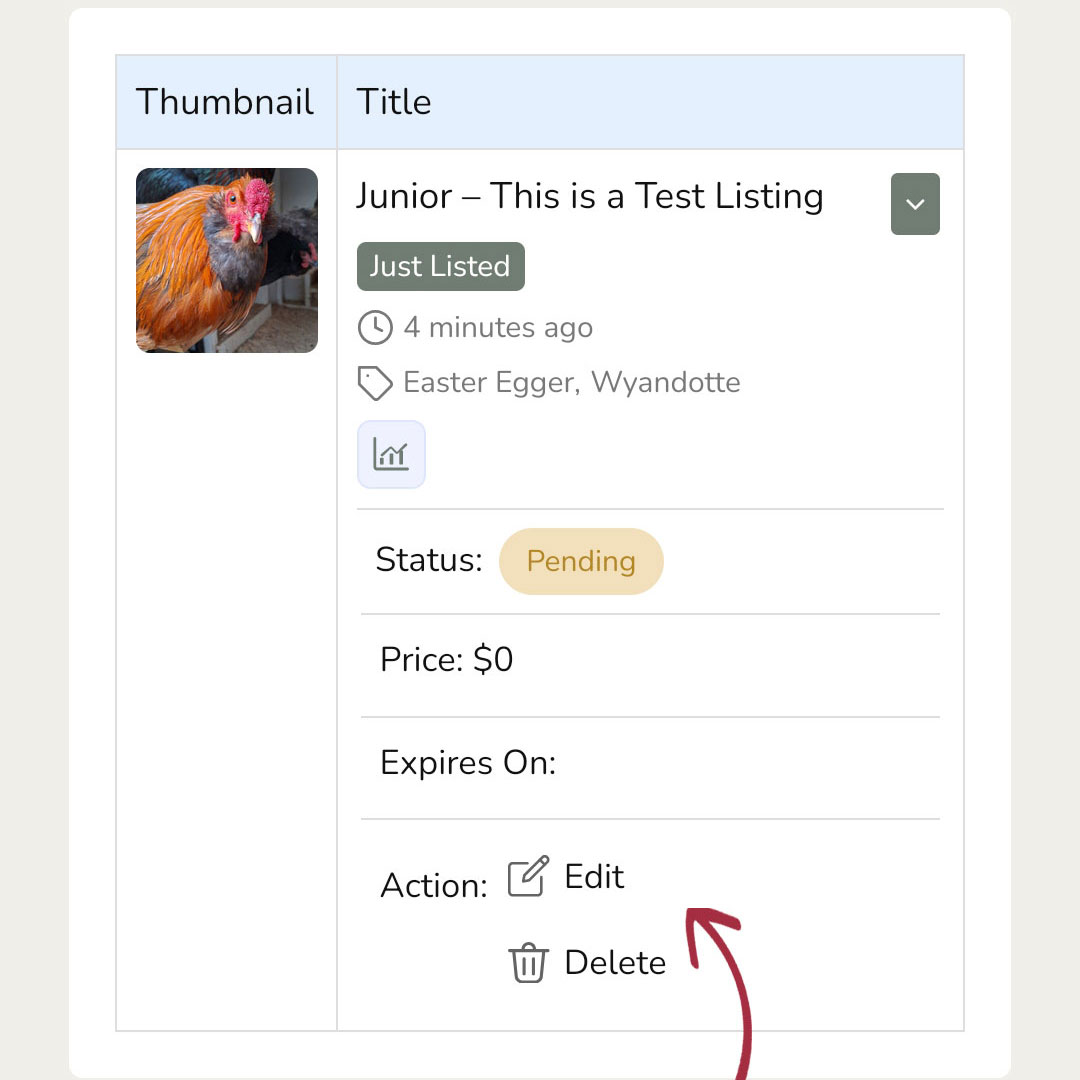

Editing or Deleting a Listing
Did your boy find a home or do you need to change something? Here’s how…
If you’re wondering how to edit or delete your listing (or mark your boy as rehomed), here’s a quick walkthrough on how to do it. I’ll cover both mobile and desktop since the buttons aren’t in quite the same spot on each. Whether your rooster found a home, you need to update the details, or you just want the listing gone, this should get you there in a couple of minutes.
If your boy has been rehomed, you can simply delete your listing. When you do, you will be asked if he found a home through the Registry and, if so, if you give permission for him to be featured on the “Success Stories” page alongside other roosters who have found homes.
On Your Phone or Tablet
Most of you are accessing the Registry on your phone so I’ll start with that. Keep scrolling if you’re on a computer, the instructions will be farther down the page. If you’re using a tablet, your screen might look like this or it might look like the computer version depending on the resolution of your screen. Tablets are tricky like that.

From the main menu of the Registry’s website, select “My Account”. A page that looks like this should load. From here, tap the hamburger menu (where the red arrow is pointing) to open your account menu.
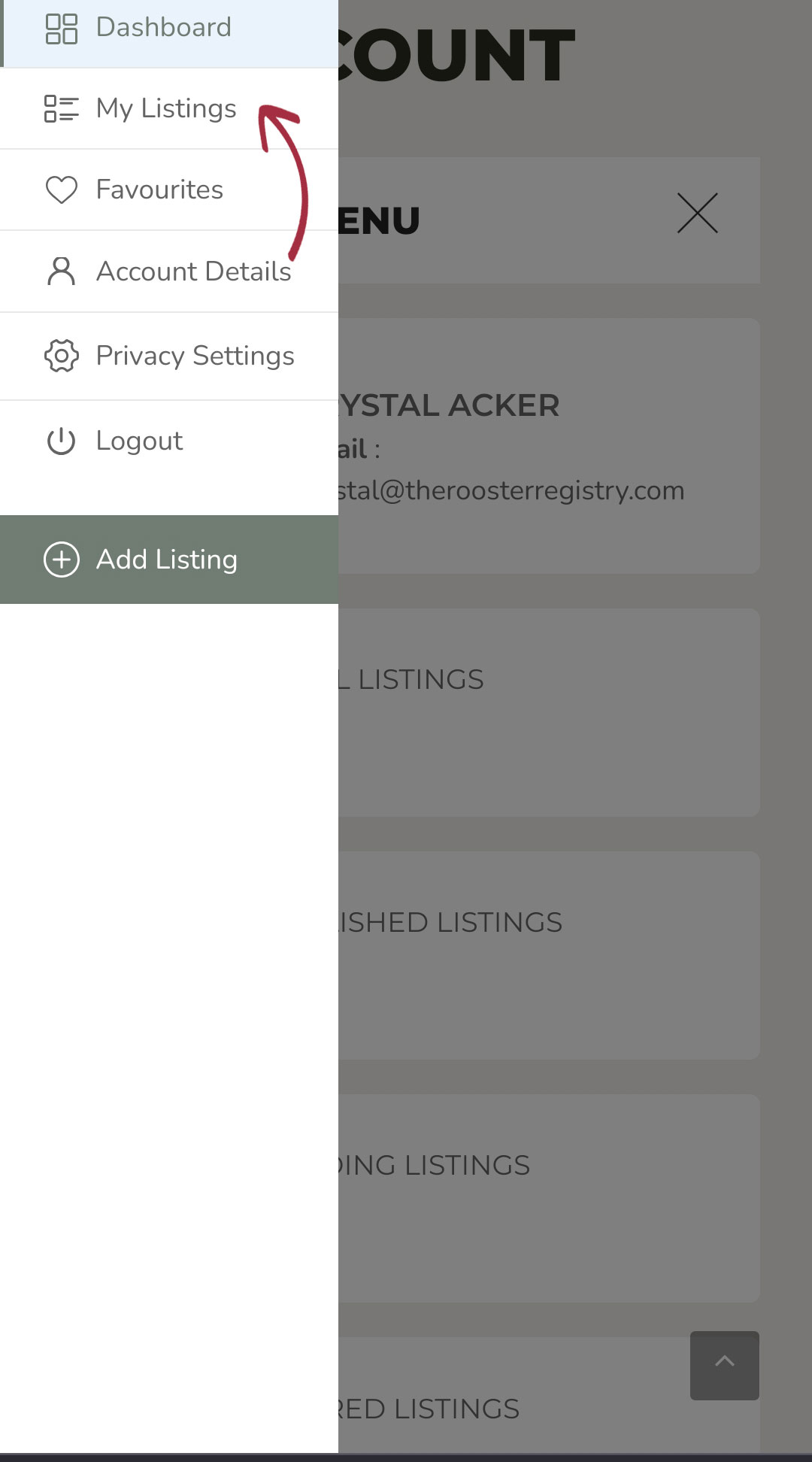
This menu will pop up from the left side of your screen.
Select “My Listings”.
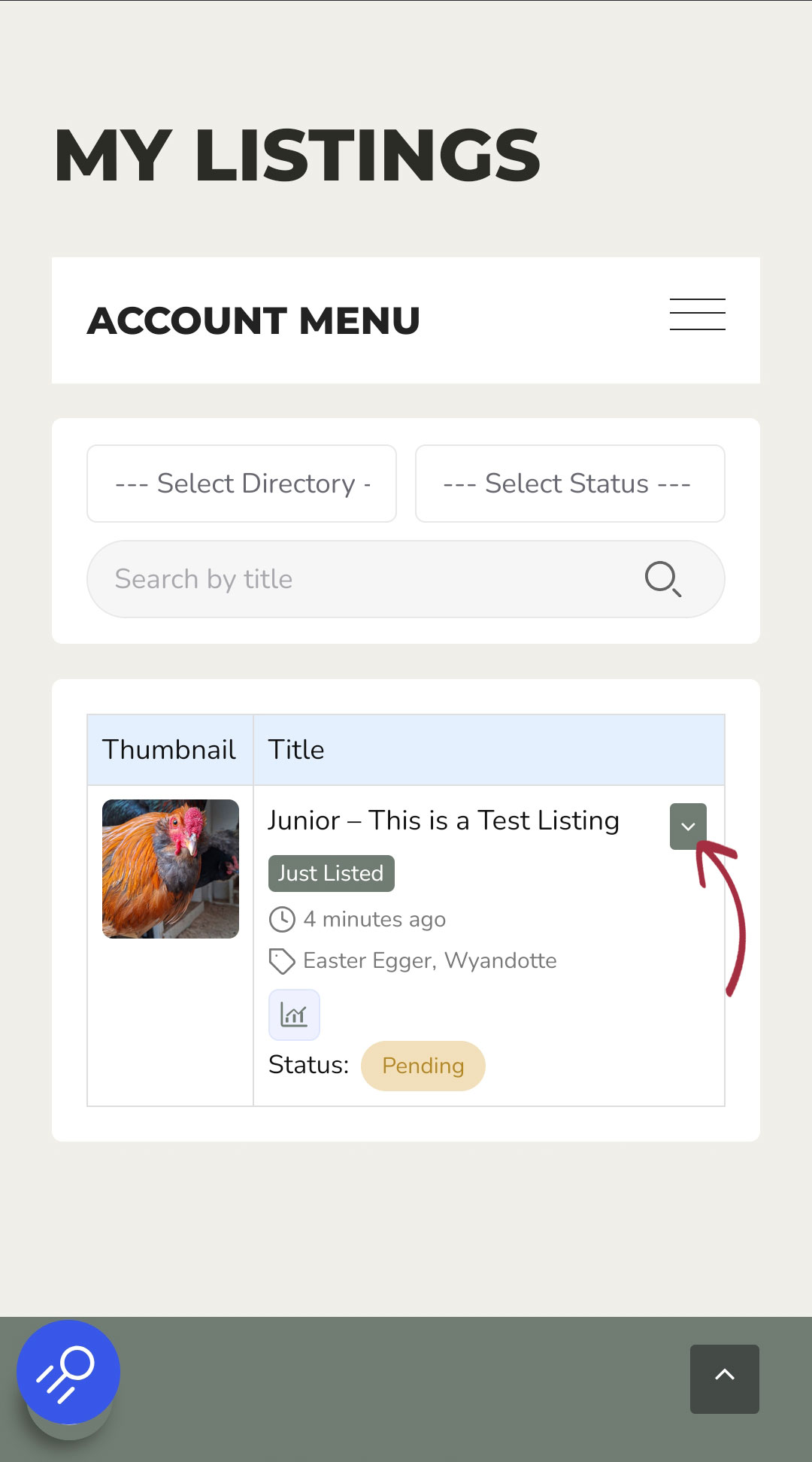
Any listings you have created will appear here, even if they have not been approved yet. In this screenshot, you can see that my listing is actually marked as “pending”. You can still edit or delete it at this point.
To edit or delete, tap that green box with the down arrow on it.
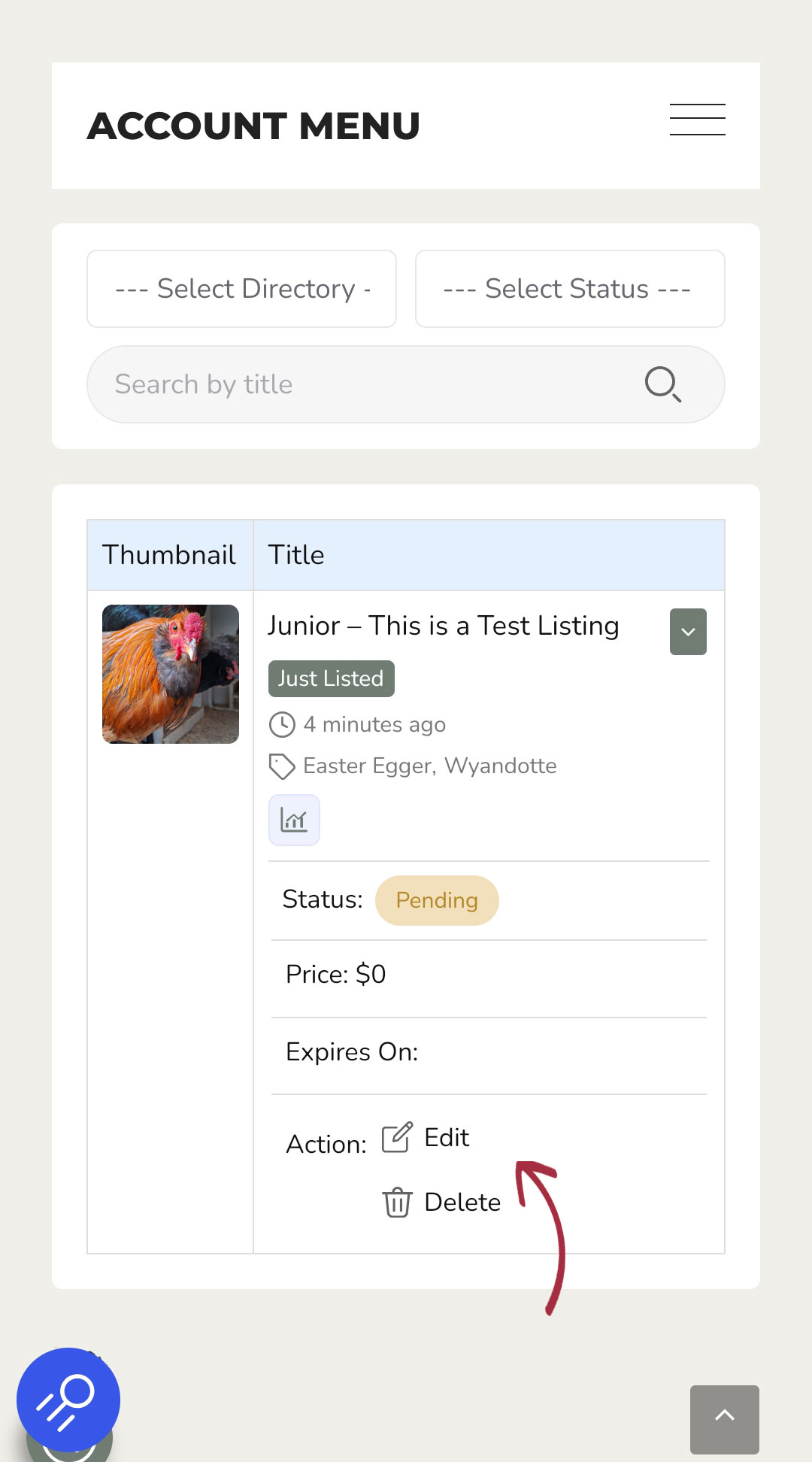
When you click the green square with the down arrow on it, your listing will expand and you will see edit and delete buttons at the bottom.

If you want to delete a listing because your boy has found a home, you changed your mind, or for any other reason this little box will pop up after you click delete.
Here you can choose why you are deleting the listing. If you choose the first option, “Yes, he found a home through the Registry”, you will be asked if you give your permission to share your boy on the Registry’s “Success Stories” page.
If you say yes, his photo, name and province will be shared on this page alongside the other boys who have found homes through the Registry.
If you’d rather not answer this question, no worries, you can choose “Skip and delete” at the bottom of the pop-up.
On Your Computer
If you’re working from your computer, here are the instructions for you. If you’re using a tablet, your screen might look like this or it might look like the phone version depending on the resolution of your screen. Tablets are tricky like that.
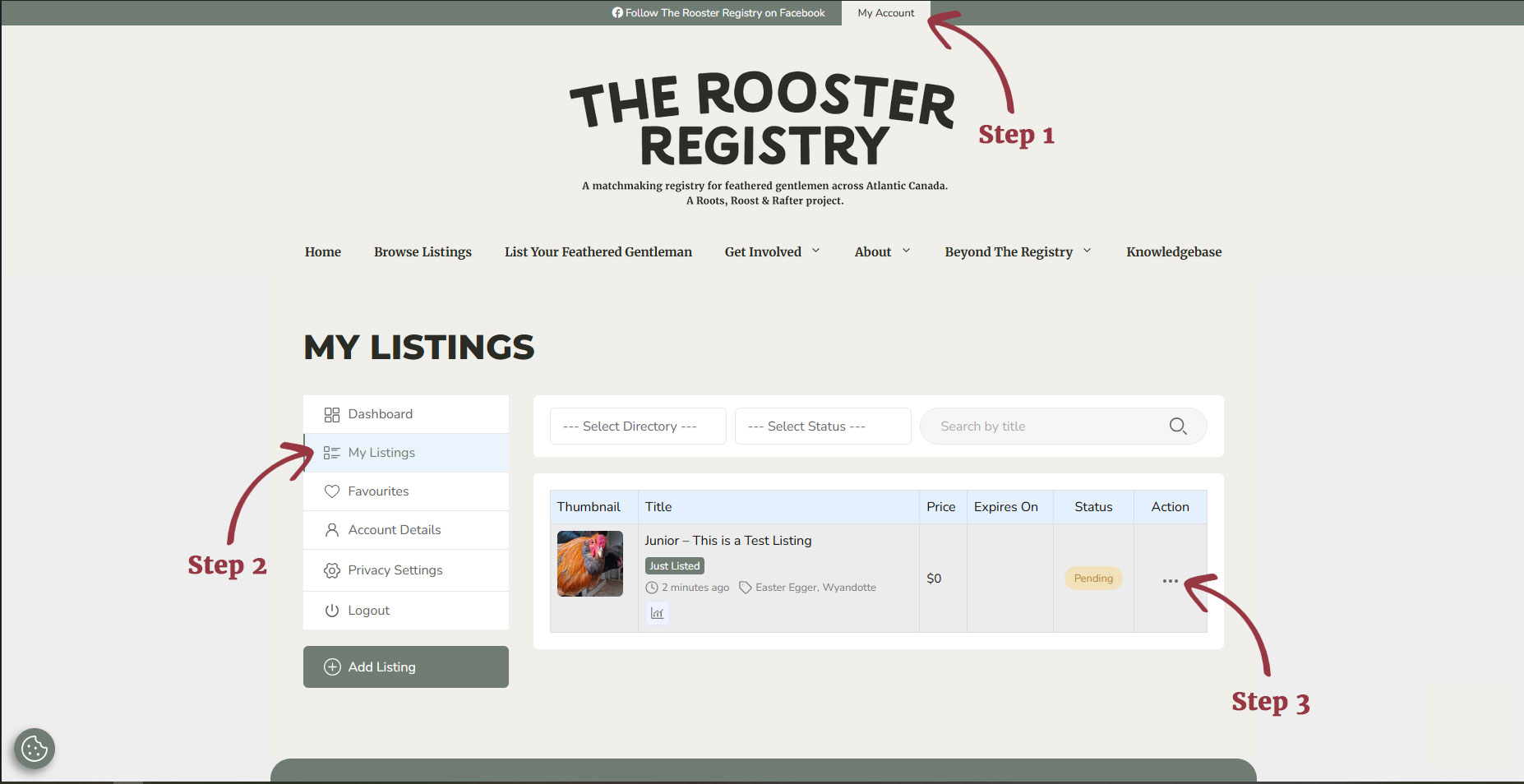
Click the “My Account” link on the green bar at the top of the page (labelled “Step 1”). This will load the page you see above. From here click “My Listings” from the left hand menu (labelled “Step 2”), find the listing you want to edit or delete and then click the three dots (labelled “Step 3”) to open the menu.
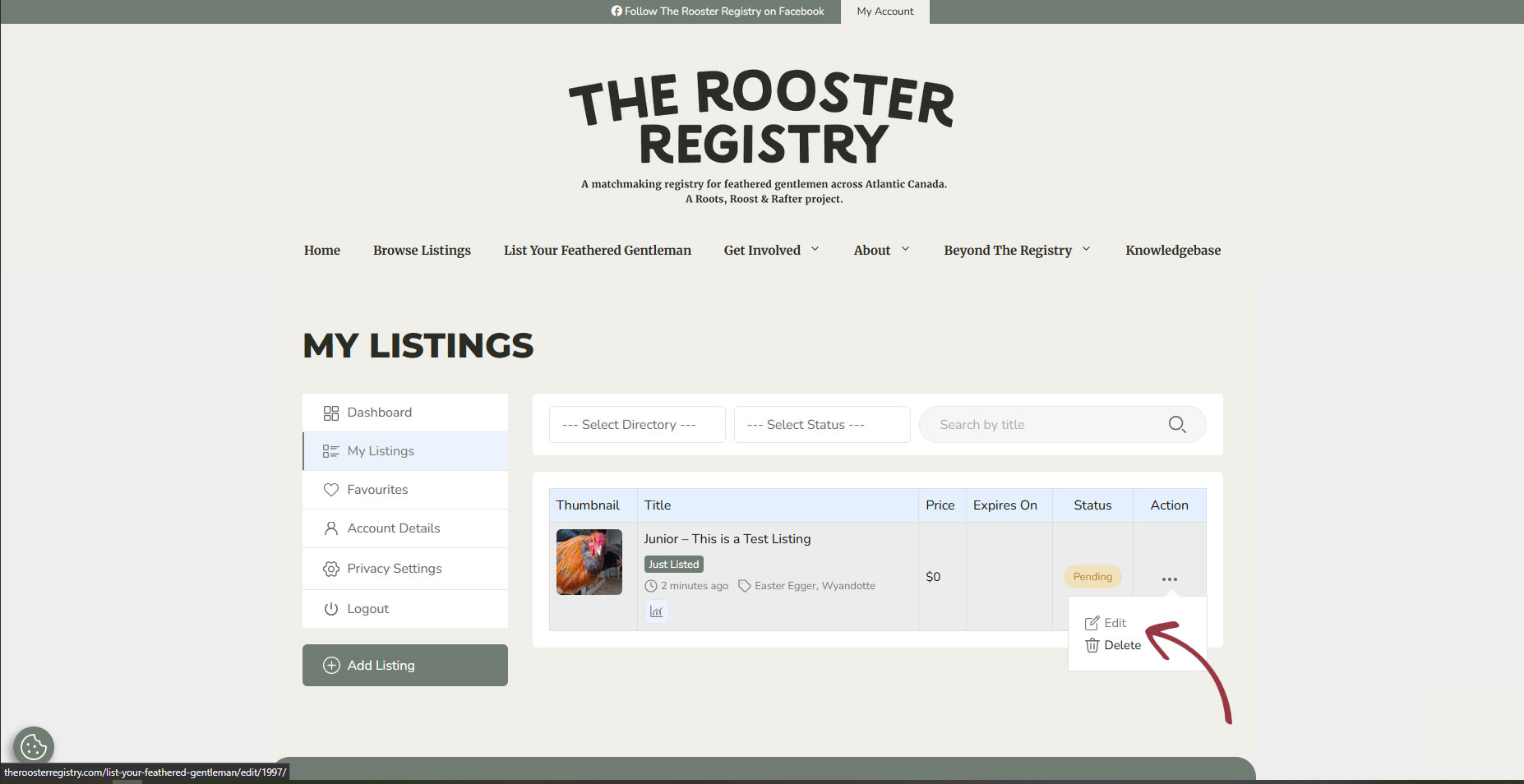
After clicking the three dots, this little menu will pop up with the option to edit or delete your listing.
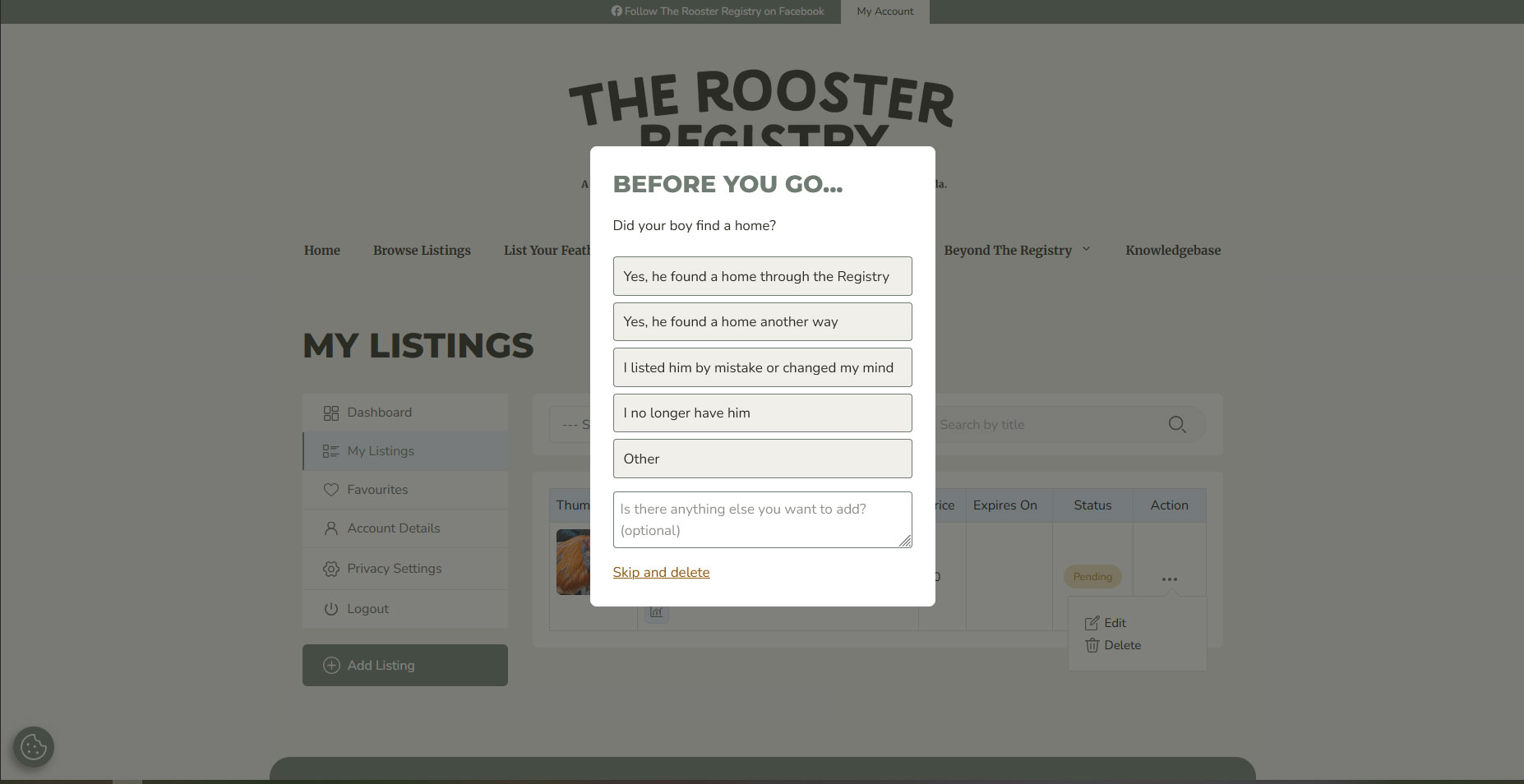
If you want to delete a listing because your boy has found a home, you changed your mind, or for any other reason this little box will pop up after you click delete.
Here you can choose why you are deleting the listing. If you choose the first option, “Yes, he found a home through the Registry”, you will be asked if you give your permission to share your boy on the Registry’s “Success Stories” page.
If you say yes, his photo, name and province will be shared on this page alongside the other boys who have found homes through the Registry.
If you’d rather not answer this question, no worries, you can choose “Skip and delete” at the bottom of the pop-up.
Hopefully this helps!
If you still have questions or need help, please don’t be shy about reaching out. You can contact me (Krystal) by email at krystal@theroosterregistry.com or through the Registry’s Facebook page – whichever is easier for you.